The Walkthrough Was Ready Before the Next Meeting
At 2:10 on Thursday, Lena had one small product change to explain. A customer wanted to see where the setting had moved. Her teammate in Taipei wanted captions she could read between calls.
The recording took six minutes. Finishing it used to take the rest of the afternoon: capture in one app, transcribe somewhere else, then drag an SRT file into an editor and line it up by eye. In a noisy office, the captions could still be late when the next meeting began.
Lena is a fictional composite. The workflow below reflects the way VoxStudio’s current Mac app works.
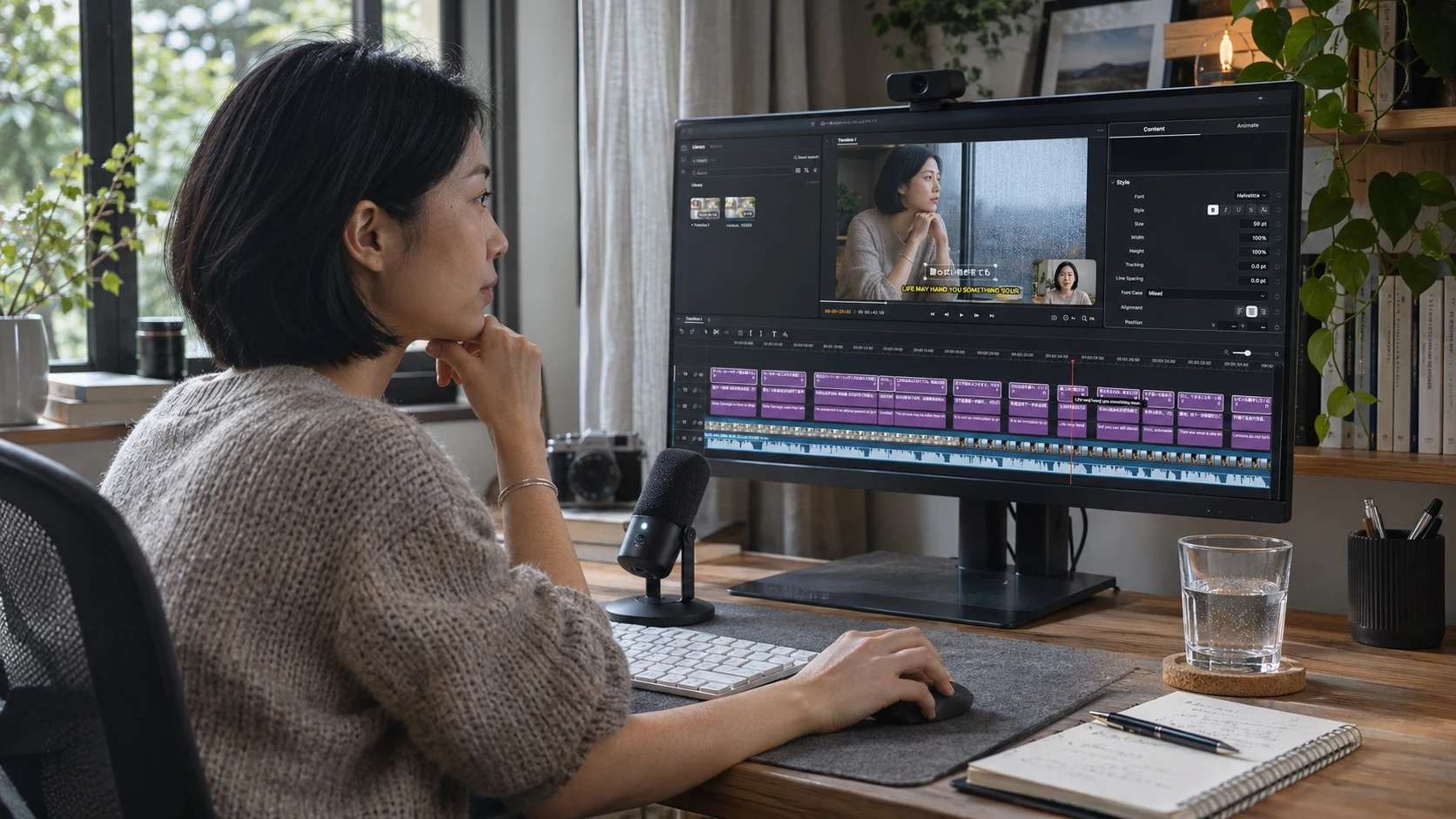
One take, with the screen and the person explaining it in the same recording.
One take, with the pieces she needed
She opened VoxStudio, went to Home, and chose New session. In New recording, she selected Screen and chose Display, since the walkthrough moved between a product window and its settings. A single-window demo could use Window instead.
She switched on Record camera and checked the microphone. System audio was enabled too, because the product made a short sound during the demo. For a quiet voiceover without app audio, the microphone alone would do. She framed the camera, pressed Start recording, showed the change, and stopped as soon as the explanation was clear.
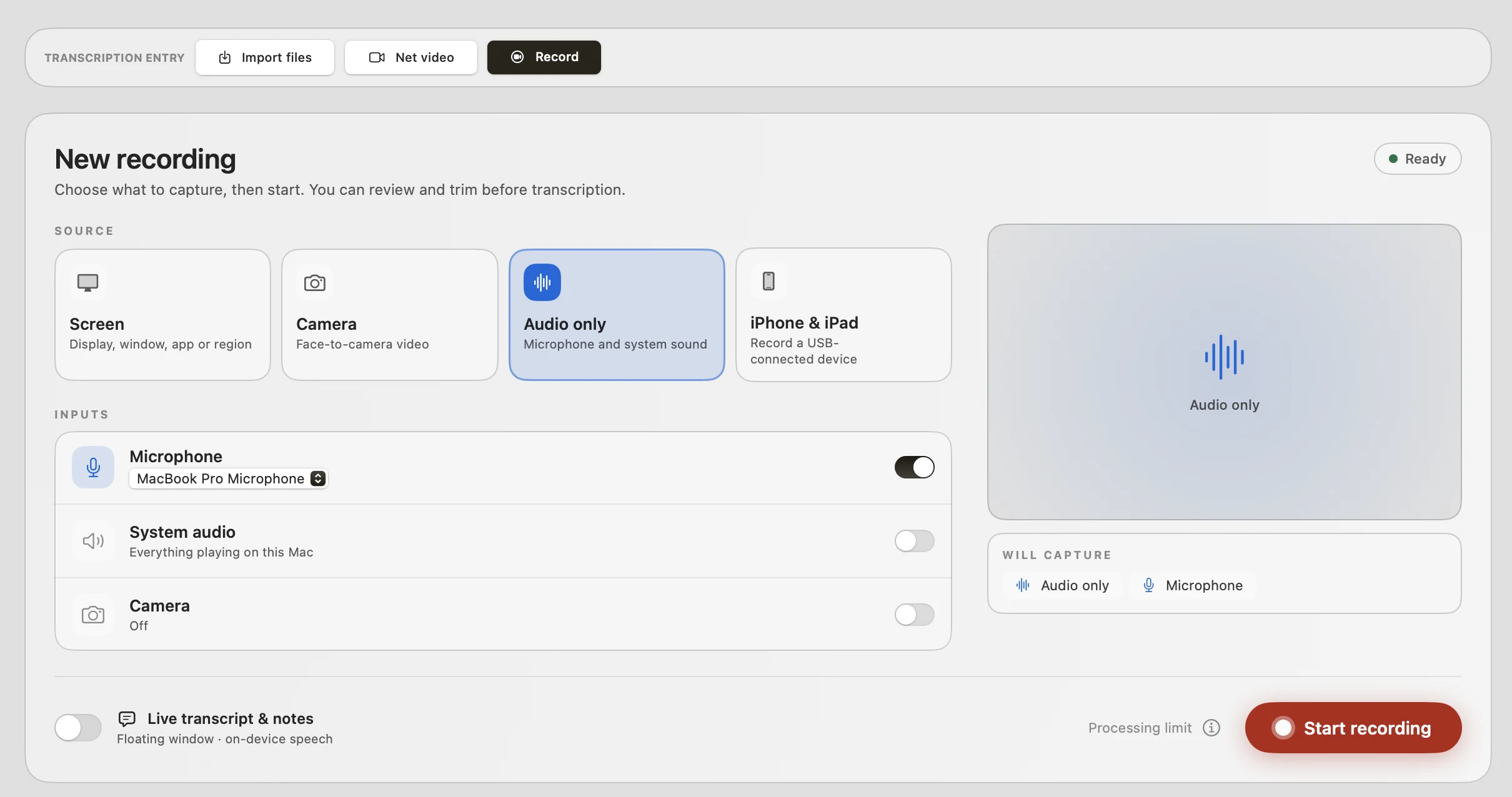
The source panel keeps capture choices and inputs together. Lena selects Screen, turns on Record camera and her microphone, and adds System audio if the demo includes sound from the Mac.
Before transcription, she watched the take and trimmed the few seconds where she was reaching for the right screen. The review step meant she could cut the dead air before spending time on captions.
Readable captions, then a translation
From the recording, Lena continued to transcription and selected Segment subtitles so the captions would arrive in shorter, readable lines. In Advanced settings, she enabled Enable translation and chose the target language for her teammate.
Translation needs an AI service. She had signed in to VoxStudio’s hosted service; a free account includes credits, and the available balance depends on the account. Someone who prefers to use their own provider can set up a key under Settings → AI Service with BYOK. Once that was ready, she submitted the transcription.
Speech recognition runs on the Mac after its local model is ready. Translation uses the AI service she selected, so Lena read through both language tracks before sharing them, especially the product name and the sentence describing what had changed.
A clearer listen track for a noisy room
The air-conditioning and nearby calls were audible in her take. Earlier, Lena had installed the audio-enhancement model under Settings → Local Features and turned on Enhance for listening under Settings → General → Recording. After recording, VoxStudio created a locally processed, noise-reduced listen track for playback and export. The transcript still used the untouched original audio. In a quiet room, she could simply leave this optional setting off.
The result came back with the speech cut into subtitle segments and a separate translation track. Lena checked the wording against the original voice; the tool had done the alignment work, but she still made the editorial call.
New Clip, and straight into the edit
She clicked New Clip on the session. The editor opened a new project with the recording media and its timed subtitle track on the timeline. Because she had recorded her camera as well as the screen, both views were available in the project. There was no caption file to export, re-import, and nudge into place.
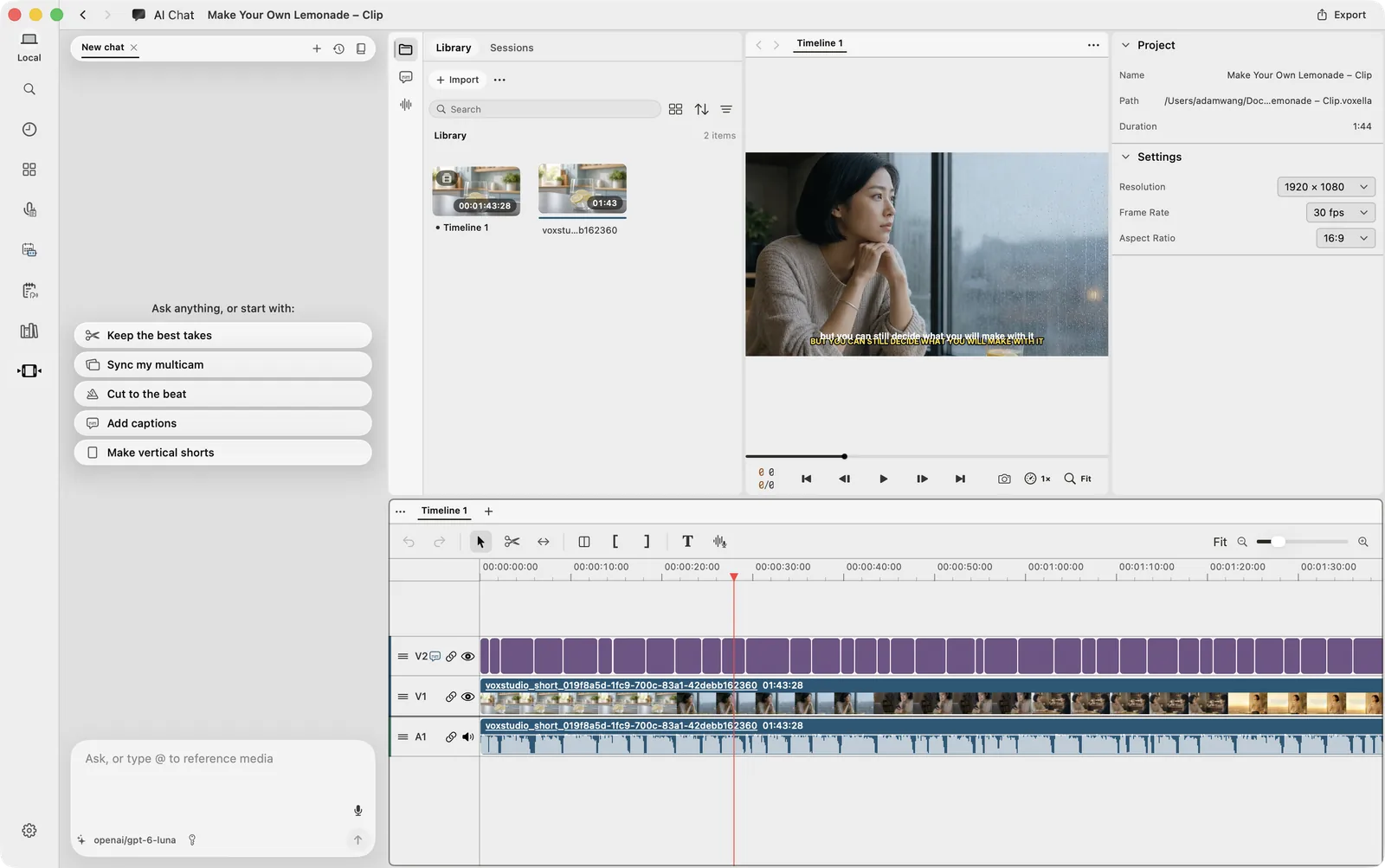
The clip opens with timed captions and audio already on the timeline, ready for the actual edit.
Lena trimmed the walkthrough to the part that mattered, checked the captions once more, and exported a short update. The customer could watch the change. Her teammate could read it. The clip was ready before their next meeting.
That is what changed: Lena did not narrate faster. She simply stopped rebuilding the same piece of work across three apps. You can see the recording flow in Turn a Screen Recording into a Clip Worth Sharing, and the subtitle handoff in Add Captions to a Video in the VoxStudio Editor.


Comments
Post a Comment